vDisk Visibility
A PVS vDisk is a black box: once it boots hundreds of targets, knowing exactly what is inside it — and how it differs from the previous version — is hard. PVS Forge makes the contents and history of every vDisk visible.
Inventory
Every time PVS Forge images a master target, it captures a detailed inventory and stores it next to the VHDX in the store. The inventory records:
- Operating system — caption, version, build number.
- Citrix — VDA version, PVS target device version, Workspace App version, FSLogix version.
- Security — security agent presence and version.
- Software — installed applications from three sources: classic installations (name, version, publisher), modern Store/MSIX apps such as the new Teams, the new Outlook or Windows Terminal, and portable tools that only appear as an all-users Start menu shortcut. Framework packages, system components and Windows built-in tools are filtered out so the list shows real applications; each entry records which source it came from.
- Hotfixes — installed updates with install dates.
- Services — service names, status, and start type.
Because the inventory travels with the vDisk, you always know what a given version actually contains — even months later.
One-time jump after updating PVS Forge
Inventories captured with versions older than 1.91.0.65 contain classic installations only. The first comparison between such an older inventory and a new one therefore lists the additional Store/MSIX and Start menu entries as added — once per vDisk, and expected.
Companion files are cleaned up with the vDisk
The inventory, hardware layout and seal/unseal log are stored next to the VHDX and linked to it by the vDisk name. When a vDisk is deleted, PVS Forge removes these leftover companion files automatically over time, so the store does not accumulate orphans.
Compare two versions
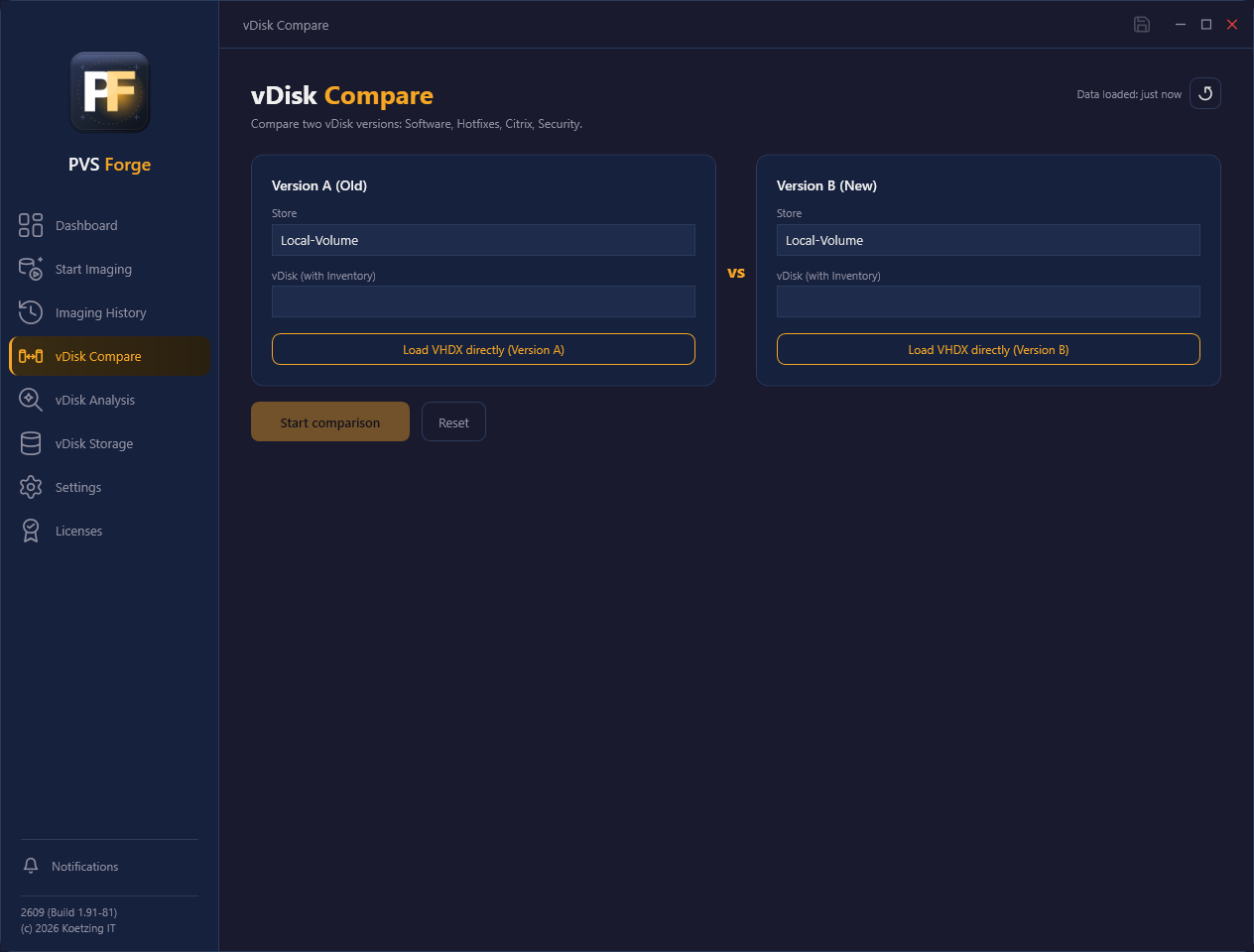
The Compare page puts two vDisks side by side and highlights exactly what changed:
- Software added, removed, or updated.
- Hotfix differences.
- Citrix and FSLogix version changes.
- Security agent — presence and version differences.
You can compare two inventoried vDisks directly, or load a VHDX and read its contents offline.
When you read a VHDX offline from one of your PVS stores, PVS Forge also files that inventory under Imaging History — as a plain inventory entry, without an imaging log. You can then reopen that single vDisk's inventory from the history later, without running the comparison again. This is handy for spot-checking a vDisk you did not build with PVS Forge.
Offline reads capture classic software only
Reading a VHDX offline inspects the contents of the disk file itself. Store/MSIX apps and Start menu-only tools are captured by the imaging agent during an imaging run, not by an offline read. When you compare an offline inventory with one captured during imaging, those entries therefore show up as differences.
AI fitness check
Compare focuses on showing the differences. For an AI assessment of a vDisk's software state, use the dedicated AI analysis page.
Imaging History
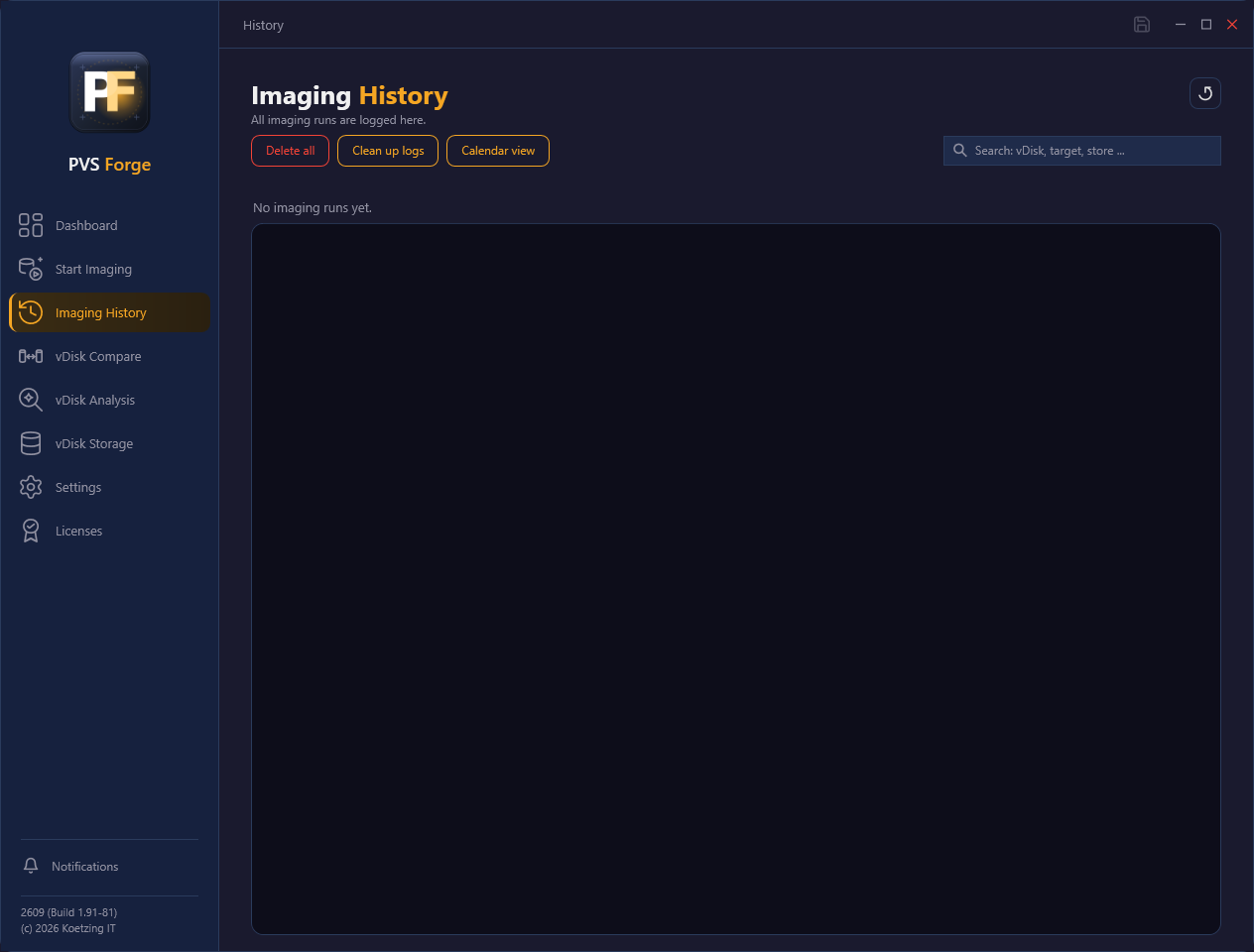
The Imaging History page is a record of every imaging run: vDisk name, target, store, start and finish time, success state, and duration. Use it to audit what was built, when, and how long it took.
Searching the history
The search box at the top right filters the list live by vDisk name, target or store. Because every imaging run is one entry, the search answers questions like "how often has this master target been changed — and when?" in one step: type the target's name and all of its runs are listed together, with their dates, durations and success states. Searching for a store shows everything that was ever built into it.
vDisks not built with PVS Forge
The history is not limited to PVS Forge's own imaging runs. When you load a VHDX on the Compare page and read it offline, the captured inventory is filed here as well — as an inventory-only entry without an imaging log — provided the VHDX sits in one of your PVS stores. That way even a vDisk created outside PVS Forge gets a history entry, and you can view its inventory quickly at any time without re-reading the VHDX.
Calendar view — the image lifecycle at a glance
The Calendar view button switches the page from the list to a full-size month calendar. Every day shows which vDisks were created on it — one entry per imaging run, and every master target has its own colour (a legend below the calendar maps colours to targets). The current day is highlighted. Navigate months with the arrow buttons, and use the target filter to show only a single master target — the filter stays active while you browse months.
This turns the history into a lifecycle picture: you see at a glance how actively an image is being maintained, when the busy phases were, and which target changed how often.
- A day shows up to three runs; if there were more, a "+N more" marker indicates the rest — narrow the view with the target filter to see them.
- Hovering over an entry shows its details: vDisk, target, store, time, duration and result.
- Clicking an entry switches back to the list, filters it to that vDisk (its name is placed in the search box) and opens that version's inventory — or its run log, if no inventory is available. Clear the search box to see the full list again.
List view returns to the normal list at any time.
Log and inventory per run
For each run you can open two views in the panel below the list:
- Log — the run log of that imaging job. For very long runs the display shows the most recent 1,500 lines (a notice indicates when the view was shortened); the stored log, PDF attachments and e-mails always contain the complete log.
- Inventory — the inventory that was captured for that vDisk version, read straight from the store: operating system, Citrix component versions, security agent state, installed hotfixes, installed software, and a short storage summary (vDisk file size in the store and used/total space on C:).
This means you can inspect what a given vDisk version actually contains right from the history, without opening Compare.
The inventory view has a Copy button in its top-right corner: it puts the whole inventory on the clipboard as structured text — the same sections as the view, with tab-separated columns for the software and hotfix lists. Pasting into Excel yields proper columns; pasting into an e-mail or ticket stays readable.
Inventory needs its companion file
The Inventory button is enabled only while the inventory file still sits next to the VHDX in the store. For older runs — or once the vDisk and its companion files have been removed — the button stays disabled and only the log remains.
Removing and cleaning up entries
Each entry has a Delete button, and Delete all clears the list. Both only remove the history record and its log — they never touch a vDisk or its files in the store.
When you delete a vDisk in PVS, its companion files in the store (inventory, hardware layout and seal/unseal log) are cleaned up automatically over time — but the history entry stays as a record. Over many build-and-delete cycles you can therefore collect entries whose vDisk no longer exists; their Inventory button is greyed out and only the log is left.
Clean up logs removes exactly those orphaned entries in one step. For every history entry whose vDisk no longer exists in its store, it deletes the entry and its log together with any leftover companion files (inventory, hardware layout, seal/unseal log). Entries whose vDisk still exists are kept, and entries whose store is currently unreachable are skipped — so a temporary network or store outage never deletes a valid record. You confirm the number of affected entries before anything is removed.
vDisk storage
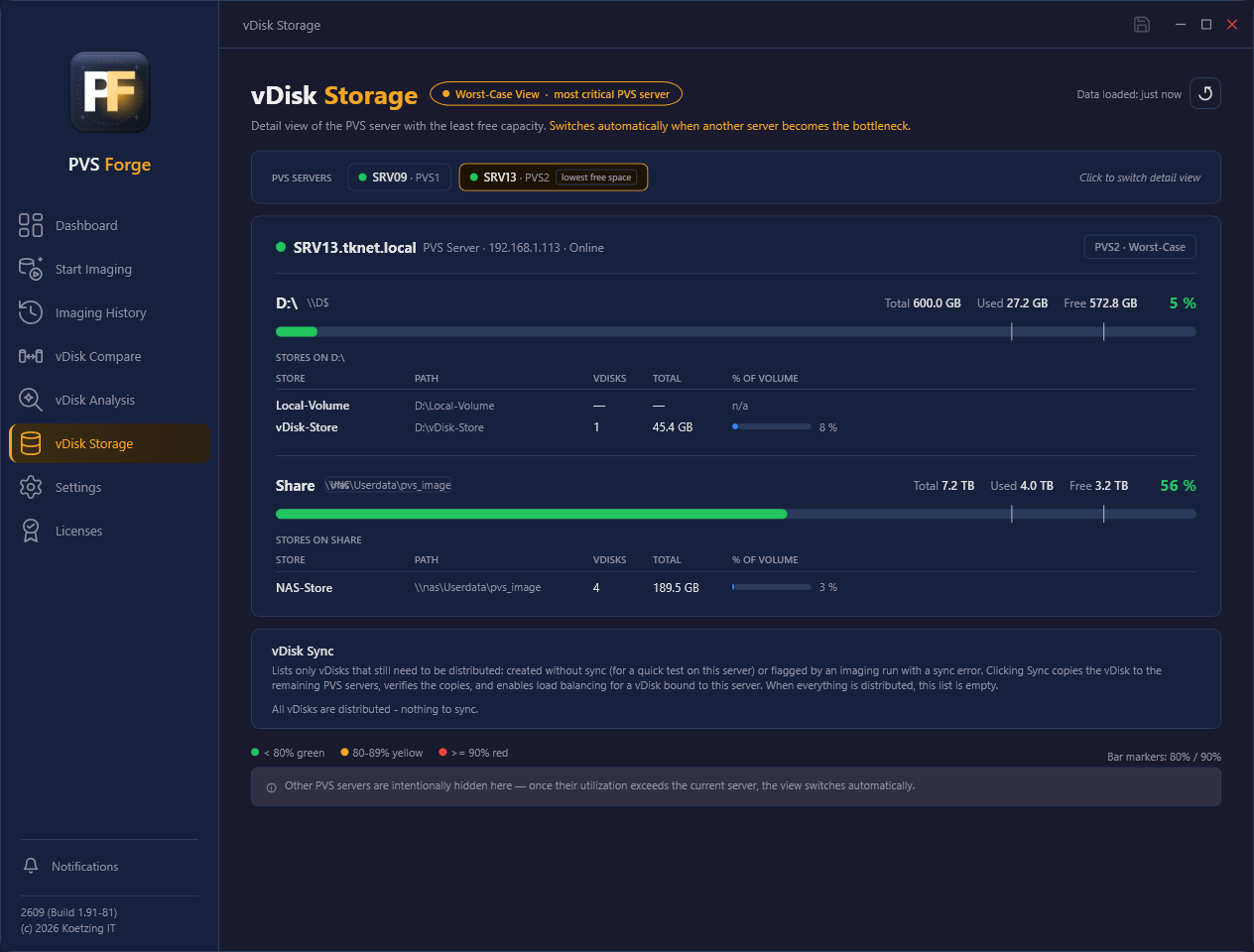
The vDisk Storage page shows how much capacity is left for your vDisks across the PVS farm. It opens on a worst-case view — the detail of the PVS server with the least free capacity — and switches automatically when another server becomes the bottleneck.
Per server, and per share or drive, you see the stores, their paths, the number of vDisks, the total size, and the utilization, together with free / used / total capacity. Utilization is colour-coded:
- green below 70 %
- yellow 70–80 %
- red above 80 %
Servers that are offline or whose capacity cannot be determined are flagged. The page answers the practical question "will my next vDisk still fit?" before you start imaging.
vDisk Sync
Below the capacity view, the vDisk Sync card lists only the vDisks that still need to be distributed — normally this list is empty:
- a vDisk that was deliberately created without sync (for a quick test on this server only), or
- a vDisk whose imaging run reported a sync error, so one or more PVS servers are missing their copy.
Clicking Sync copies the vDisk to the remaining PVS servers and verifies every copy; a vDisk that is bound to this server is switched to load balancing automatically afterwards — one click takes it into production, and the result line then shows load balancing enabled. Healthy targets are skipped by the copy (identical files are not rewritten) and only re-verified; one run at a time, and the row shows live progress and the result including the verified servers. If the vDisk file is missing from this server's store, the run reports an error instead of pretending success. Once a vDisk is distributed successfully, it disappears from the list.
Dashboard
The Dashboard is the overview of your PVS environment, read directly from the local PVS installation: the number of PVS sites, PVS servers, stores, and vDisks, plus the current connection status and quick access to imaging.