Settings
The Settings page is organized into tabs in a left sidebar. Changes are applied with the Save button at the bottom, which stays visible on every tab.
| Tab | Contents |
|---|---|
| General | Language, configuration storage, performance |
| vDisk & Imaging | Imaging behaviour, custom sealing script, PVS import defaults |
| AI Analysis | AI provider, API key, model |
| Notifications | E-mail, Teams, Slack |
| Proxy | HTTP proxy for AI |
| Security | Credentials and firewall rule |
General
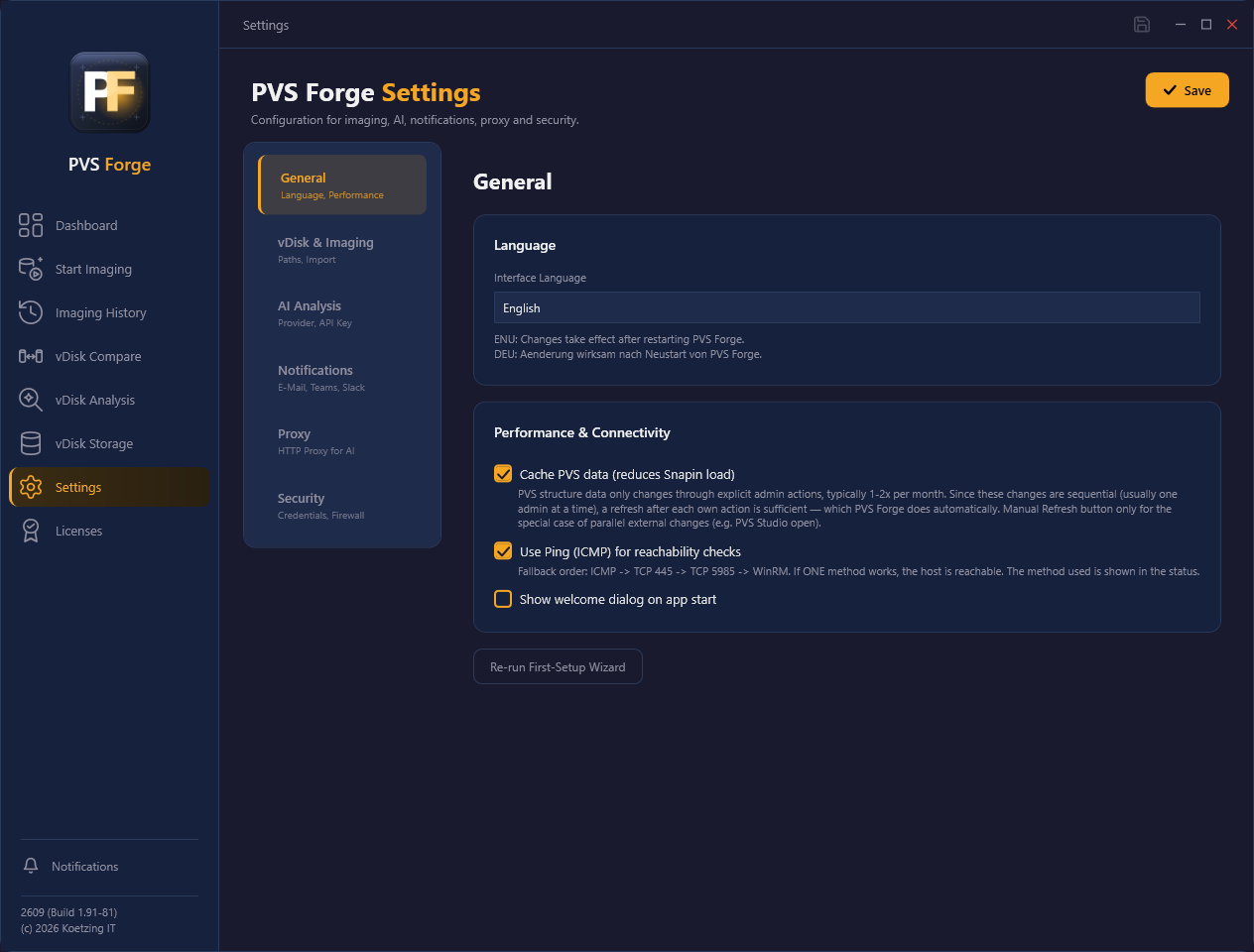
Sub: Language, Performance
Language
Choose the interface language. The change takes effect after restarting PVS Forge.
Configuration storage
PVS Forge keeps all its settings in a single central config.json on the PVS
server. Every administrator who runs Forge on that server shares the same
configuration — identical imaging paths, credentials and defaults for everyone.
Passwords and API keys
Sensitive fields (imaging / PVS / SMB credentials, SMTP password, AI API key)
are stored encrypted with Windows DPAPI (machine-bound) inside config.json
— never in plain text. Because the encryption is bound to the machine, the file
cannot simply be copied to another server and reused.
See Files and locations for the exact path and for the
advanced keys that only exist in config.json.
Performance & connectivity
- Cache PVS data — reduces load on the PVS snap-in by caching reads.
- Use Ping (ICMP) for reachability checks — turn off in environments where ICMP is blocked; PVS Forge then relies on the port checks.
- Show welcome dialog on app start — toggle the start-up dialog.
- Re-run First-Setup Wizard — opens the initial setup wizard again.
vDisk & Imaging
Sub: Paths, Import
Imaging behaviour
| Setting | Meaning |
|---|---|
| Network speed | Link speed (e.g. 10 GbE) used to estimate imaging duration |
| Advanced replica check after sync | Additional integrity check of the synced vDisk copies, running as the final step after sync and green replication status. Only the copies created by sync are checked — not the original written by the imager. This extra security takes a few minutes per copy, but carries more weight than the Citrix replica status alone, which only compares size and date and does not detect interrupted copies. A copy with proven corruption is deleted and reported as a sync error; copies that are in use or cannot be checked are noted in the log and never deleted. Default: off |
| Reboot before imaging | Reboot the master target before sealing (a pending reboot forces one anyway). Default: off |
| Reboot wait / readiness time | How long to wait for the target to come back |
| Disable computer password change | Prevents a domain trust break while the image is taken |
| Disable RDS Network/Disk Fair Share | On session hosts, disables per-session Network and Disk fair-share throttling (best practice) — see below |
| Set SAN policy to OnlineAll | Ensures a local write cache disk comes online on every streamed target — see below |
| Force logoff before imaging | Disconnected RDP sessions are always logged off; this also logs off active console/RDP sessions |
| Load warning before parallel imaging | Before starting 2 or more imaging jobs in parallel, PVS Forge shows the current load of each PVS server (active target devices and live streaming activity from the Citrix performance counters) and asks for confirmation — parallel imaging generates high disk and network load and can affect actively streamed target devices. Default: on |
| Secure channel port | TCP port of the TLS control channel the agent connects back on (default 8745); see Network ports |
Disable RDS Network/Disk Fair Share (on by default)
On a master target with the RD Session Host role (typical for Citrix/RDSH golden
images), Windows throttles resources per session via Fair Share Scheduling. This
also throttles the imaging agent's vDisk transfer and disk activity, which can slow
imaging noticeably. PVS Forge therefore disables Network and Disk fair share
during sealing (EnableFairShare = 0 under
HKLM\SYSTEM\CurrentControlSet\Services\TSFairShare\Disk and \NetFS). CPU fair
share is left untouched (disable it only if you manage CPU with WEM instead).
This is established RDSH/Citrix best practice — Microsoft disables it by default from Windows Server 2025. The change is intentionally captured in the vDisk so streamed machines get the recommended production state; it takes effect on the master target from its next reboot. On machines without the RD Session Host role it is skipped automatically. Turn the setting off to leave fair share unchanged.
Set SAN policy to OnlineAll (on by default)
Windows Server keeps disks it has not seen before offline by default (SAN policy Offline Shared), and the "this disk may come online" flag is bound to the device instance path — which differs from VM to VM. In practice this means: a local write cache disk that was prepared and formatted on the master target comes up offline and without a drive letter on the streamed target devices, and the write cache silently falls back to the server.
PVS Forge therefore sets the SAN policy to OnlineAll during sealing
(SanPolicy = 1 under HKLM\SYSTEM\CurrentControlSet\Services\partmgr\Parameters).
The value is intentionally captured in the vDisk, so every streamed target brings
its cache disk online automatically. Citrix documents the same change as a manual
per-device step; PVS Forge applies it for you.
Only turn this off if your target devices have genuinely shared SAN LUNs (Fibre Channel/iSCSI volumes mapped to several hosts at the same time) — with OnlineAll such LUNs would also come online automatically on every target. For virtual target devices with dedicated disks (the usual case) the setting is safe.
Best practice: attach the write cache disk on your target devices at the same SCSI position (controller/LUN) as on the master target — the disk configuration captured in the vDisk then matches directly. The SAN policy acts as the safety net for any deviation.
Parallel imaging of several master targets
Select the master targets you want to image in parallel with the checkbox next to their position, then use Start all — the selected targets run as one batch and are distributed across the PVS servers by used size (load-balanced). The checkbox in the header selects or clears all at once. A single play button always images just that one target, regardless of the selection.
Custom sealing scripts
Run your own scripts on the master target around imaging: a pre-sealing script before the image is captured (its changes land in the vDisk) and a post-sealing script after imaging, before re-activation (to undo what the pre-sealing script did).
- Pre-sealing / post-sealing script path — a local path on the master target
or a UNC share it can reach (e.g.
NETLOGON), only.ps1or.cmd. - Timeout (seconds) — one shared value for both scripts (default 90). A script that runs longer is killed (logged as a script error).
Must run unattended
Scripts must run headless: no pauses, no Read-Host, no GUI. A non-zero exit
code does not abort imaging — it is logged and the run continues, and the
job is always flagged in the status and email so a failed script never
goes unnoticed. A missing path or unsupported extension is caught by the
readiness check and aborts before imaging starts.
For the full rules, the service-context pitfalls, UNC/NETLOGON details, the list of supported environment variables, and ready-to-use PowerShell and CMD templates, see Custom Sealing Script.
DNS/DHCP pruning
Right before the image is captured — after a custom pre-sealing script has run — PVS Forge can remove the DNS and DHCP registration state from the image:
- Remove DNS registration state before sealing (default: on) — deletes
the
DNSRegisteredAdaptersregistry key from the image. Streamed devices otherwise carry the master target's DNS identity and delete its DNS record when they boot. Windows rebuilds the key automatically — the change is risk-free and repeatable. - Also remove cached DHCP lease data (default: off) — additionally clears the cached DHCP lease values (IP address, DHCP server, gateway, …). Streamed devices then start with a clean DHCP discover instead of requesting the master target's old lease. Enable this if you see address conflicts or duplicate IP addresses after a rollout.
Every action is written to the imaging log (<vDisk>.seal-unseal.log) —
removed, not present (fine), or a warning. A failure here never aborts
imaging, and the step is safe on every run.
Secure Boot certificates (2026)
The Microsoft Secure Boot certificates of 2011 expire in 2026. If a master target runs Secure Boot and its firmware is missing the 2023 certificates, the pre-imaging check warns in the live log and the notification center — including a ready-to-copy command. The background: once a Windows update places a 2023-signed boot manager into the vDisk, streamed devices whose firmware also lacks the certificates may no longer boot (Citrix CTX696455 / CTX696473).
- Fix Secure Boot certificates (2023 rollout) (default: off) — when enabled, PVS Forge sets the Microsoft opt-in on the master target and starts the Windows update task before imaging. The master target is then restarted once before imaging (via the existing reboot mechanism, reason "SecureBootFix") so the certificates reach its firmware. Windows applies what the platform allows; no internet access is required — the signed update payloads arrive via normal Windows servicing (WSUS or Windows Update). The trigger is also captured in the vDisk, so streamed devices can apply the certificates to their own firmware as well — subject to hypervisor support.
Make sure your hypervisor supports the 2023 certificate chain first (for example VMware vSphere 8.0 U3h or later, XenServer 8.4, current Hyper-V on Windows Server 2019 or later) — updating the VM firmware of existing target VMs is a hypervisor-side task; see your hypervisor vendor's guidance.
PVS import
| Setting | Meaning |
|---|---|
| Set write cache | Whether PVS Forge applies write-cache settings on import |
| Write cache type | RAM + disk with async I/O (default) or without async I/O (diagnostics) |
| Write cache size | Cache size in MB (e.g. 4096; larger for VDAs with more RAM) |
AI Analysis
Sub: Provider, API Key
Configure the optional AI used on the Compare page.
- AI provider — choose the provider, or Custom Endpoint and supply the Endpoint URL.
- API Key — your provider key (stored encrypted).
- Model — leave empty for the default (
claude-haiku-4-5-20251001), or enter a model manually (for example a Sonnet model). - Enable web search (Anthropic Claude only) — lets the AI look up current advisories and CTX articles during analysis.
- Test connection confirms the key and endpoint work.
Notifications
Sub: E-Mail, Teams, Slack
Send a notification when an imaging job finishes. Each channel can be enabled independently.
News & updates
Optional, off by default. When enabled, PVS Forge checks
download.pvs-forge.com once at startup for product news and new versions and
shows them in the notification center (the Notification entry at the bottom of
the sidebar). An update notice offers Download, What's new and Dismiss.
This requires outbound web access (it honours the proxy settings). It sends no data — it only fetches a small public file. With no connectivity it stays silent.
E-mail (SMTP)
| Field | Notes |
|---|---|
| SMTP server / port | Your mail relay |
| Use SSL | Enable for TLS-secured relays |
| Username / password | Optional, if the relay requires authentication |
| Recipients | One or more addresses |
| Sender | From address |
| Email format | Multipart (HTML + plain text, recommended) or plain-text only (compliance/restricted) |
Use Send test e-mail to verify the configuration.
Every imaging result e-mail — success and failure — includes the complete
job log as a PDF attachment (pvsforge_<vDiskName>.pdf), so a failed run can be
analysed directly from the mailbox without opening PVS Forge.
Teams / Slack
Enable the channel and paste the incoming webhook URL for your Teams channel or Slack workspace.
Proxy
Sub: HTTP proxy for AI
Controls how PVS Forge reaches the AI provider over HTTP.
- Proxy mode — No proxy (direct), System proxy (Windows settings), or Custom proxy.
- Proxy URL and bypass list for the custom mode.
- Authentication — None, Basic, or NTLM (with username and password).
Security
Sub: Credentials, Firewall
Credentials and the tier concept
PVS Forge can use up to two credential sets:
- Master Target credentials — a user with local administrator rights on the master target. Used for everything that touches the master target: WinRM control and the SMB transfer of the imaging component to it.
- PVS Server credentials — a user with write access to the PVS store
(
\\server\store).
PVS Server credentials are not a default value — they are for a tiered setup
This field is empty by default. Leave it empty and PVS Forge uses the Master Target credentials for everything — the master target and its share as well as the PVS servers.
Fill it in only for a tier concept, where the master target (and its share) live in a different security tier than the PVS servers. In that case the Master Target credentials cover the master target and its share within the tier, while the PVS Server credentials are used for the PVS servers.
The PVS Server credentials card is hidden by default
To keep the interface simple, the PVS Server credentials card is not
shown in Settings out of the box. To reveal it, set
"ShowPvsServerCredentials": true in config.json
and restart PVS Forge.
Each card has a Test connection button. Passwords and API keys are stored encrypted with Windows DPAPI, bound to the machine running PVS Forge.
Network ports
PVS Forge coordinates three roles. PVS1 is the PVS server running PVS Forge (and usually the store), MT is the master target being imaged, and PVS2 stands for any additional PVS server you sync to.
| From | To | Port | Protocol | Used for | Credentials |
|---|---|---|---|---|---|
| PVS1 | MT | 5985/TCP | WinRM | Control: reachability, scheduled task, sealing & imaging | Master Target |
| PVS1 | MT | 445/TCP | SMB | Transfer the imaging component to \\MT\C$ |
Master Target |
| MT | PVS1 | 8745/TCP | TLS | Secure control channel: live status, cancel and more | pinned per-job certificate |
| MT | PVS1 / store | 445/TCP | SMB | Write the VHDX (and the inventory/layout data) to the store | imaging job identity |
| PVS1 | PVS2 | 5985/TCP | WinRM | Sync orchestration and free-space check | PVS Server (or Master Target) |
| PVS1 | PVS2 | 445/TCP | SMB | Sync the vDisk to the other PVS server | PVS Server (or Master Target) |
| PVS1 | MT, PVS2 | – | ICMP | Optional reachability ping (can be disabled under General) | – |
Protocol rules
WinRM is always reached by hostname / FQDN (Kerberos needs it), while SMB reachability is checked over IPv4. The secure control channel (TLS) defaults to TCP 8745 and is configured under vDisk & Imaging.
Firewall for the secure channel (TCP 8745)
PVS Forge automatically creates a permanent inbound rule PVSForge Exchange (TCP 8745, domain/private profile) on the PVS server, so the master target can reach the secure control channel. Any firewall between the networks (network firewall, VLAN ACLs) stays your responsibility — allow MT → PVS on TCP 8745. The channel is TLS-secured and exchanges information like live status, cancel signal and more; the master target verifies a per-job certificate. No control or status files are written to the store anymore — only the VHDX and the inventory/layout data. If the secure channel cannot be established, imaging is aborted with a clear message (there is no fallback to unencrypted exchange).
If TCP 8745 is blocked by an intermediate firewall: you can change the port
to any value that is already open — for example 443, which many firewall
policies allow by default. Set the new port number under vDisk & Imaging →
Secure channel port; the change takes effect when you save (while imaging jobs
are running, the old port stays active until they finish). PVS Forge opens the
port right at application start, so a port conflict shows up when saving or at
the next start — not in the middle of an imaging job. Ports of known services
are rejected when saving: Citrix PVS (SOAP, streaming, PXE/TFTP boot) and
Windows infrastructure (SMB, RPC, RDP, WinRM, SQL Server). To see which
process occupies a port, run netstat -ano | findstr ":<port> ". Port 443 is
a good choice on a dedicated PVS server that runs no HTTPS services.
If the listener cannot be created on the PVS server (for example because another process already occupies the port), PVS Forge does not start the job at all: the row shows an error immediately and the Notification Center explains the cause and the possible solutions — no time is lost waiting for an agent that could never connect.
SMB firewall rule on the master target
As of Windows Server 2025, inbound SMB (445) is blocked by default on freshly
domain-joined machines — but PVS Forge needs SMB to transfer the imaging
component to the master target. This setting controls whether PVS Forge creates a
named firewall rule (PVSForge-SMB-In) on the master target via WinRM before
imaging:
- Disabled (default) — no change to the firewall.
- Temporary — create the rule before imaging, remove it afterwards.
- Permanent — create the rule and leave it in place.
Hardened environments
In hardened environments, open SMB via Group Policy instead and leave this option disabled.
Files and locations
PVS Forge keeps its configuration, history, and logs as files on the PVS server.
| File | Location | Purpose |
|---|---|---|
config.json |
%ProgramData%\KoetzingIT\PVSForge\config.json |
Central settings for all administrators (passwords / API keys DPAPI-encrypted) |
imaging-runs.json |
%AppData%\KoetzingIT\PVSForge\imaging-runs.json |
History of imaging runs shown on the History page |
pvs-forge-<date>.log |
%AppData%\KoetzingIT\PVSForge\logs\ |
Daily rolling application log (30-day retention) |
%AppData% vs %ProgramData%
%AppData% is the current user's roaming profile
(C:\Users\<user>\AppData\Roaming); %ProgramData% is the machine-wide
C:\ProgramData. The configuration lives centrally under %ProgramData%;
history and logs live under the per-user %AppData%.
Files in the vDisk store
Alongside each VHDX, PVS Forge stores a few companion files named after the vDisk. They are marked hidden in Explorer.
| File | Contents |
|---|---|
<vdisk>.inventory.json |
Software inventory (OS, applications, hotfixes, Citrix, FSLogix, security agents) |
<vdisk>.storage.json |
Hardware disk layout and capacity data |
<vdisk>.seal-unseal.log |
Log of the sealing and unsealing steps for that imaging run |
Moving to the database
These per-vDisk files are written into the store today. A future version will write this information to the SQL database instead.
Advanced keys (config.json only)
Some keys have no UI and are read from config.json only. Add them by hand and
restart PVS Forge:
| Key | Effect |
|---|---|
ShowPvsServerCredentials |
true reveals the PVS Server credentials card in Settings |
PVSForge_Debug_Log |
true writes an additional verbose pvs-forge-debug-<date>.log |
Reset
If a setting becomes inconsistent (for example an API key that stays empty
after an update), close PVS Forge, delete the relevant config.json, then
re-enter and save your settings.